

Why Importing Historical Data in ServiceNow Matters
Before the "how," it helps to understand when and why this comes up. ServiceNow data migration for historical records is typically needed when teams are:
- Migrating from a legacy ITSM or CRM platform (Remedy, Jira Service Management, or a custom-built system)
- Consolidating multiple ServiceNow instances into a single source of truth
- Meeting audit and compliance requirements in regulated industries like finance, healthcare, or government
- Enabling multi-year trend reporting that depends on complete historical data sets
- Preserving CMDB, asset, or HR case continuity across systems.
A poorly executed historical import creates data integrity issues that are far more expensive to fix after go-live than to prevent up front, which is why the method and sequencing below matter.
Import Sets and Data Sources
Import Sets are the standard entry point for any ServiceNow historical data import, and the safest one, since they stage data before it ever touches a production table.
Steps to import historical data using Import Sets:
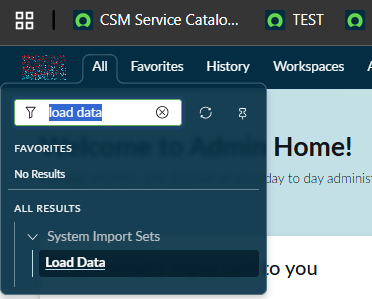
- Navigate to System Import Sets > Load Data.
- Select your source type: CSV, Excel, XML, JSON, JDBC/ODBC database connections, LDAP, or a network file share.
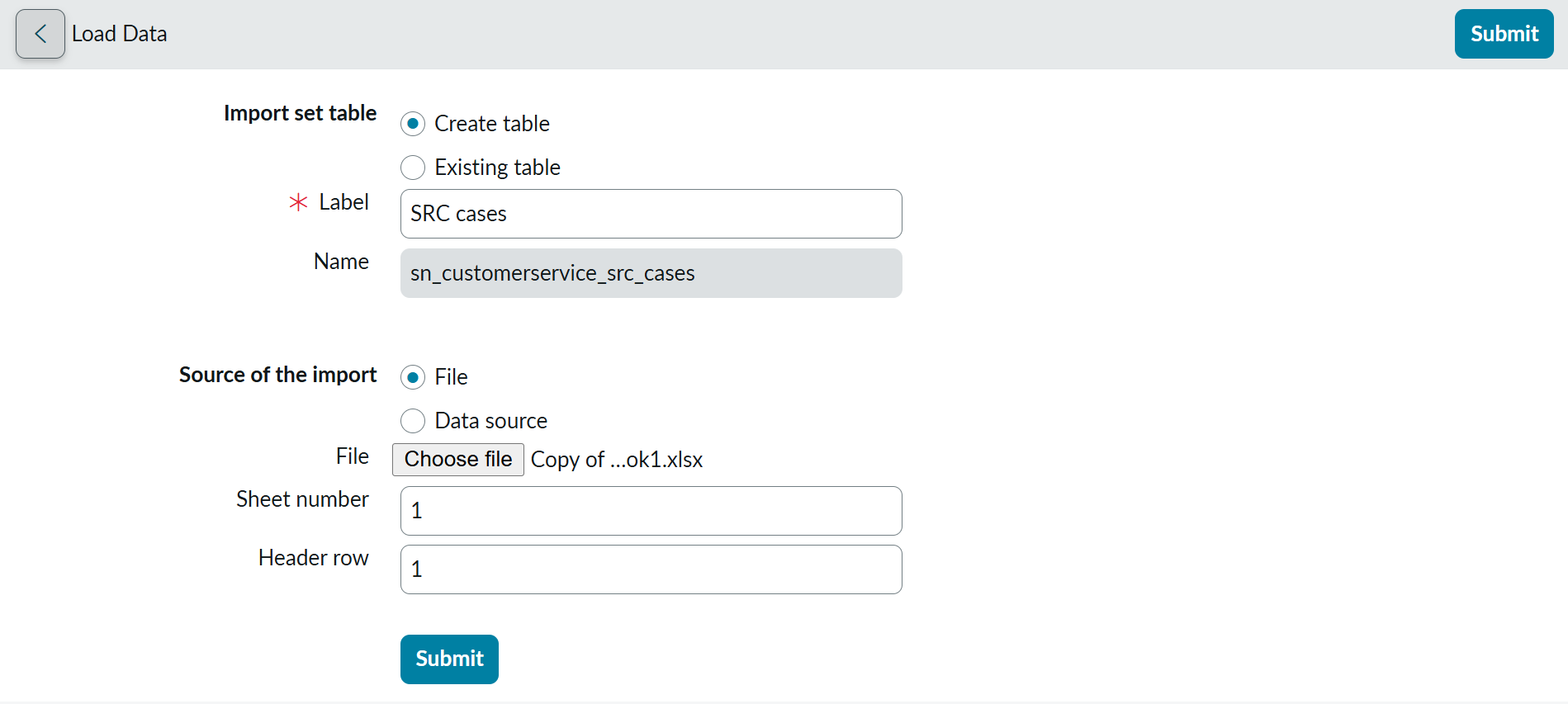
- Upload the file or connect to the external data source.
- ServiceNow generates a staging table to hold the raw, unmodified data.
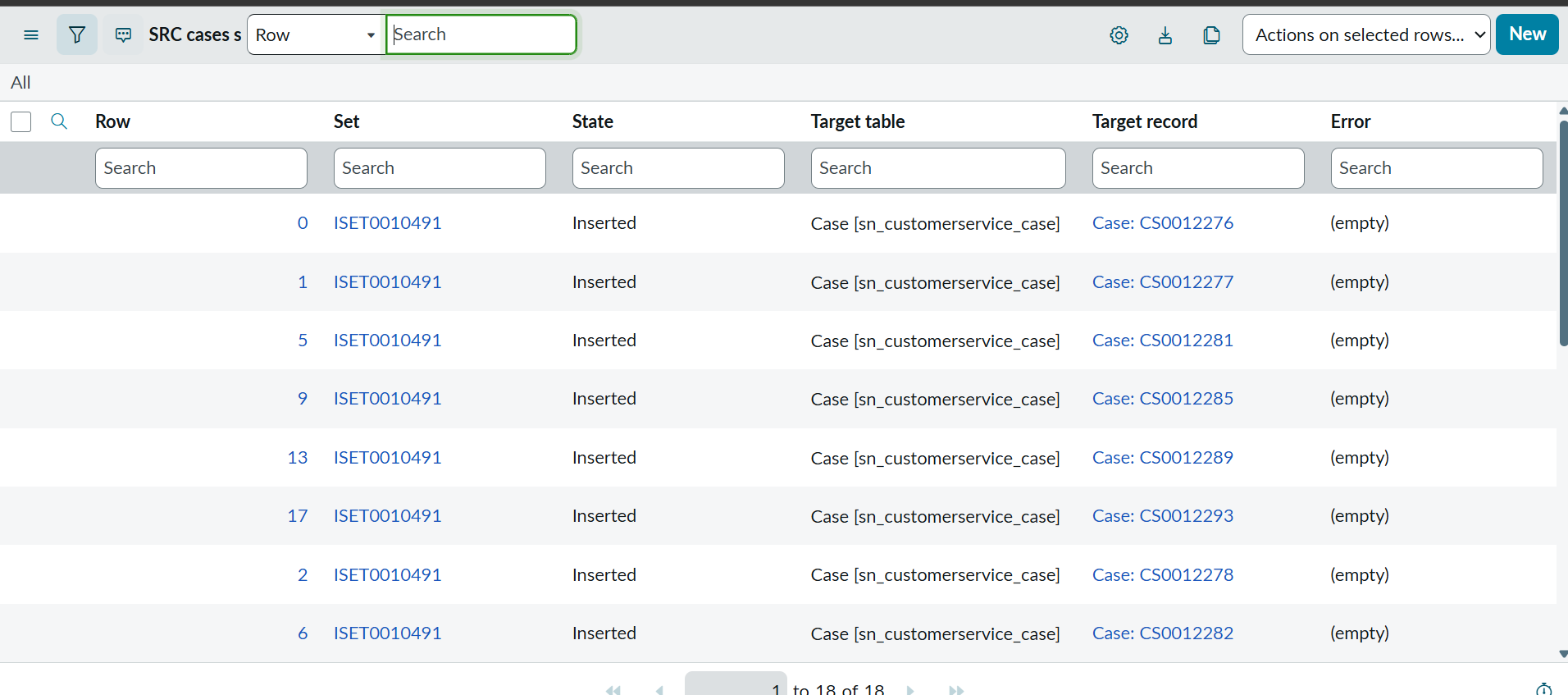
- Preview the imported rows and confirm the column structure before moving forward.
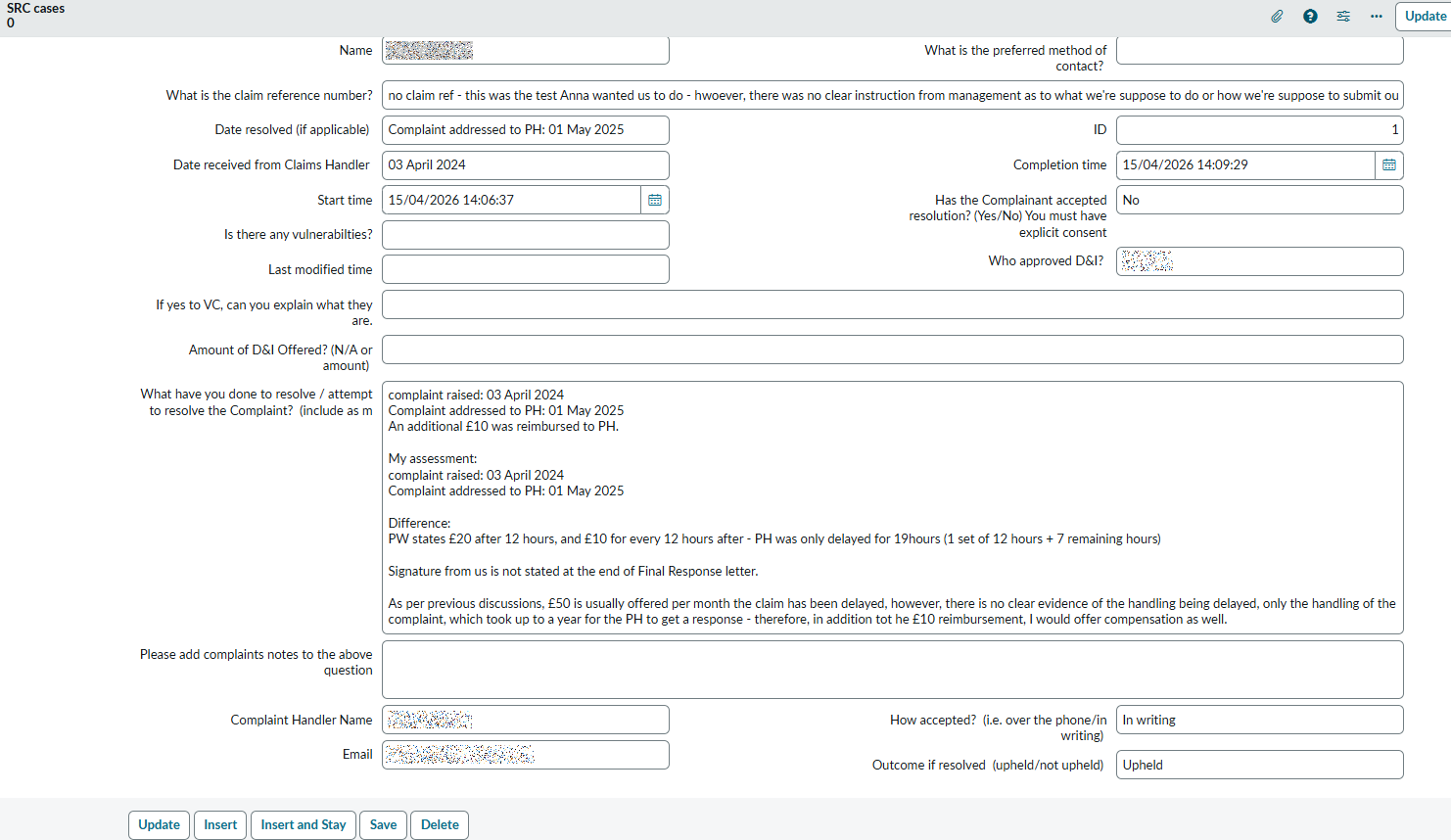
Because Import Sets isolate raw data in staging, you get a validation checkpoint before anything reaches incident, change request, or any production table, critical when importing years of historical records at once.
Transform Maps for Field-Level Control
Once your historical data sits in a staging table, Transform Maps control exactly how it flows into ServiceNow's target tables.
Steps to configure a Transform Map:
- Go to System Import Sets > Transform Maps and create a new map.
- Link your staging (source) table to the target table (e.g., incident, sc_task, or a custom table).
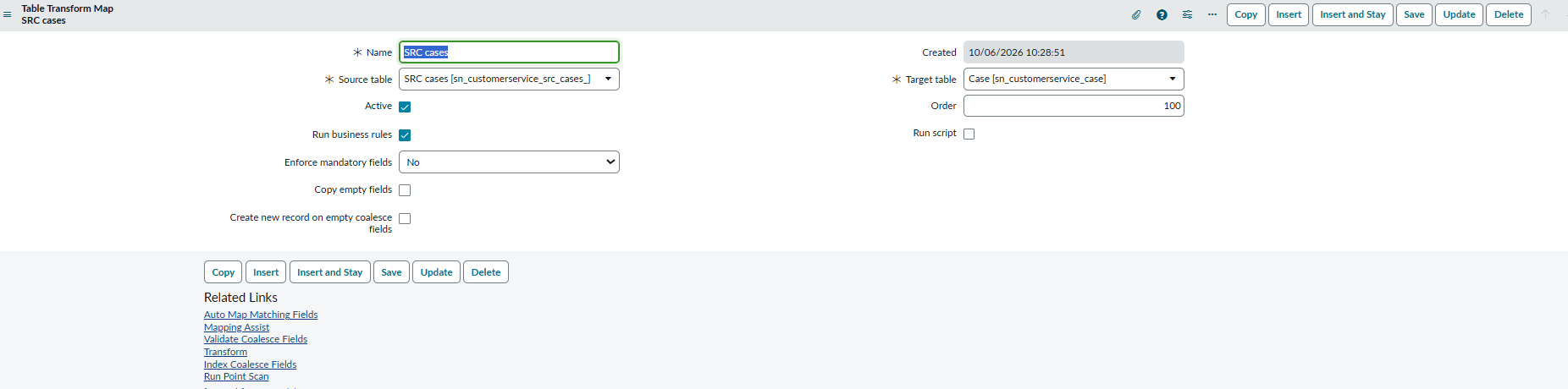
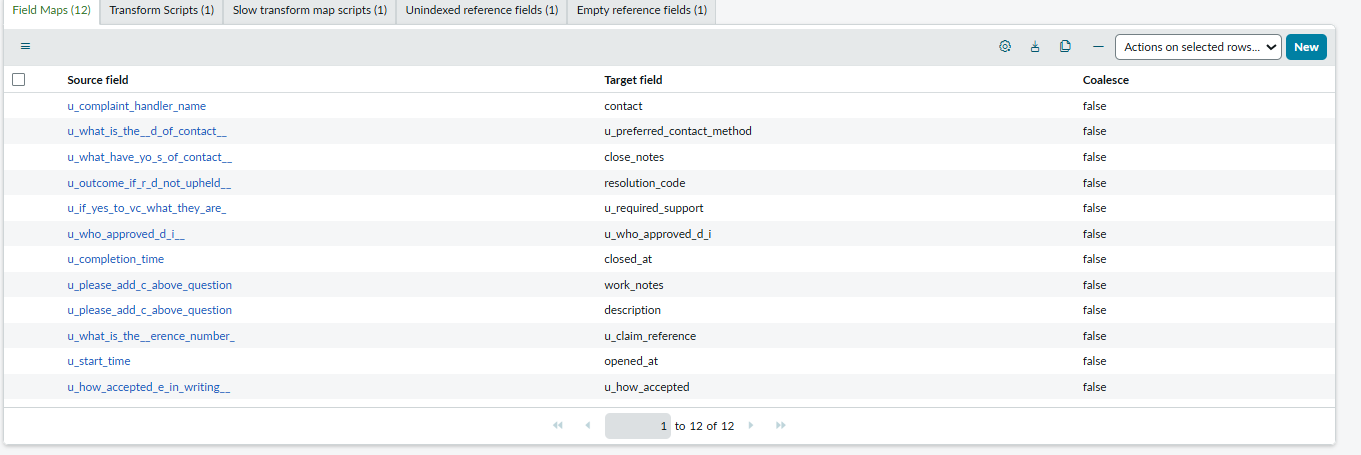
- Define field mappings between legacy source columns and native ServiceNow fields.
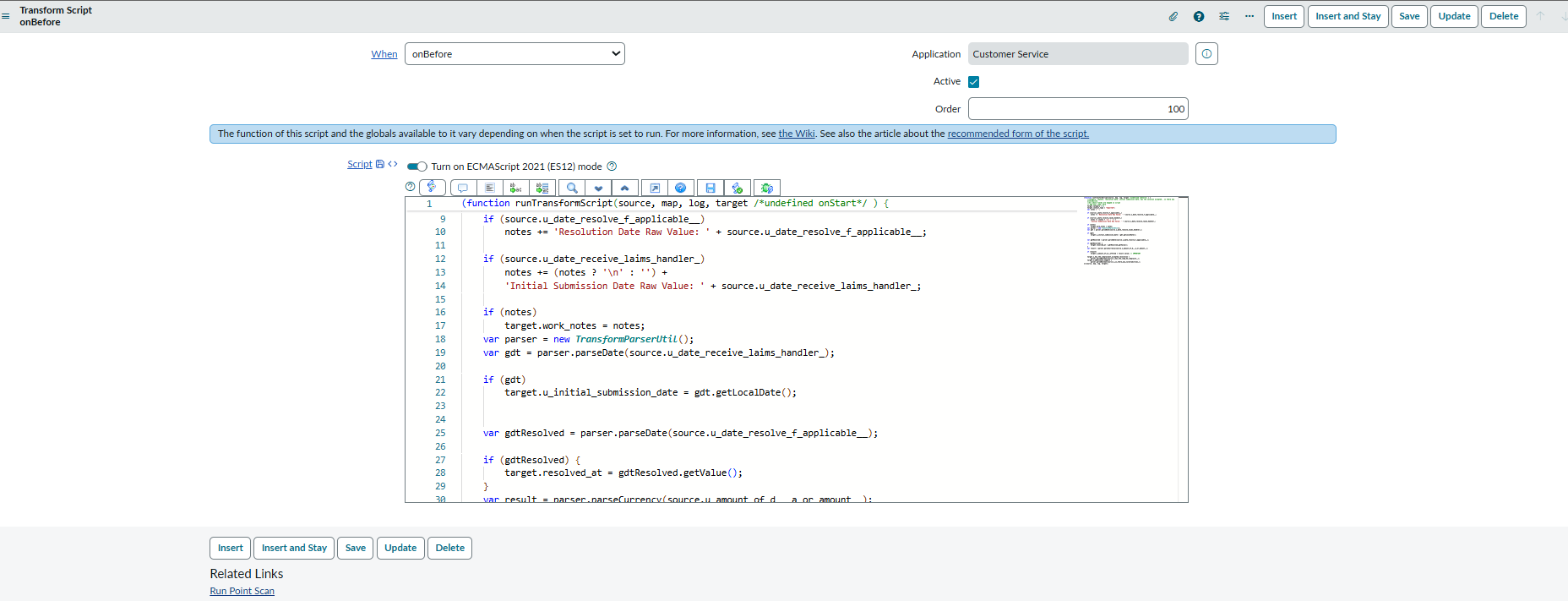
- Add transform scripts for fields requiring logic, for example, converting legacy status codes into ServiceNow's native state values, or reformatting date strings.
- Run the transform and review the Import Log for errors, skipped rows, or mapping failures.

This is where most ServiceNow historical data import issues get resolved, particularly legacy status codes and date formats that don't map cleanly out of the box.
Step-by-Step Checklist: How to Import Historical Data in ServiceNow Cleanly
- Audit your source data — remove duplicates, standardize date formats, and clean inconsistent values before import.
- Map legacy status/state fields to ServiceNow's native choice values.
- Stage first using Import Sets — never import directly into production tables.
- Build and test Transform Maps on a small sample before running the full load.
- Preserve original timestamps and authorship using scripted field mapping.
- Import parent records before child/related records (e.g., incidents before their comments).
- Validate reference fields — confirm assigned_to, caller_id, and CI references resolve correctly.
- Test the full import in a sub-production instance first, then repeat or promote to production.
- Reconcile record counts between source and target after every load.
- Retire staging tables once the import is verified complete.
Common Pitfalls When Importing Historical Data in ServiceNow
- Overwriting system fields incorrectly, creating audit trail gaps
- Importing without deduplication, leading to bloated, unusable tables
- Ignoring reference field integrity, which breaks links to users, groups, or CIs
- Skipping a test import, resulting in costly production cleanup later
- Not accounting for ACLs, which can silently block field updates mid-transform
Frequently Asked Questions
How do I import historical data into ServiceNow without changing the creation date?
Map your legacy "created date" field directly to sys_created_on in the Transform Map, and use a Before Insert Business Rule to set protected system fields. Without this step, ServiceNow defaults to the import date.
What's the best tool for a large ServiceNow historical data migration?
For most migrations, Import Sets combined with Transform Maps handle the job. For complex logic or very large volumes, the Table API paired with an ETL tool gives more precise control.
Can I import historical incidents, comments, and attachments together?
Not in one step. Import parent records (like incidents) first, then related child records and attachments afterward, since they reference the parent's sys_id.
Do I need a sub-production instance to test a historical data import?
It's strongly recommended. Testing your Transform Maps and field mappings in a sub-production instance first prevents irreversible data issues in production.
Final Thoughts
Importing historical data in ServiceNow doesn't have to be risky when you use the platform's native tools correctly: Import Sets for staging, Transform Maps for field-level control, and deliberate handling of system fields to preserve authentic timestamps. Whether you're moving a few thousand records or years of enterprise history, a structured, staged approach is what separates a clean migration from a costly cleanup project
If you're planning a large-scale migration, test your full import process in a sub-production instance first, it's far easier to fix a broken Transform Map there than to clean up production data afterward.